A simple, repeatable guide for building the Instagram Saves → Notion pipeline with Claude Code. Follow the steps in order.
Step 1: Paste this prompt into Claude Code
Open Claude Code inside a new project folder, then copy and paste the prompt below exactly as written.
Build an Instagram Saves → Notion sync system with two parts:

## Part 1:
A Python background script that authenticates to Instagram's web API using
browser session cookies, fetches all saved posts (with collection names),
and syncs new ones into a Notion database. Each save gets stored with its
author, caption, URL, content type (Post/Reel/Carousel), and which Instagram
collection it came from. A state file prevents duplicates. The script runs
automatically twice a day via macOS launchd.

## Part 2:
A Claude Code skill that reads unprocessed saves from Notion and turns them
into content ideas. For each save, it reframes the original concept for an
audience of beginner AI solo founders, generates 3 hook variations, a
structured outline (Hook → Key Points → CTA), and platform-specific breakdowns
for Instagram, TikTok, and YouTube. It presents the ideas for review, then
saves approved ones to a separate Content Ideas Notion database and marks the
original saves as processed.

## Goal/Desired Output
The goal is a zero-friction pipeline: save something on Instagram, and twice a
day it automatically flows into Notion. Then on demand, those saves get
transformed into actionable content ideas ready for production.
Step 2: Let Claude create the two Notion databases
Claude will create an “Instagram Saves” database and a “Content Ideas” database. Tell it where you want them to live (for example, under an existing page in your workspace).
Step 3: Create a Notion integration
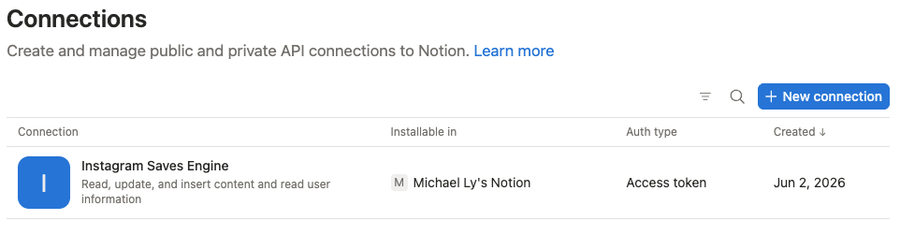
- Go to notion.so/my-integrations
- Click New connection, name it something like “Instagram Saves Engine”.
- Set “Access token”, and pick the workspace that holds your databases.
- Create the connection, then give it Read, Insert, and Update content capabilities.
- Save it, then copy the Access token secret.

Step 4: Connect both databases to the integration
- Open each database as a full page.
- Click the three-dots menu in the top right.
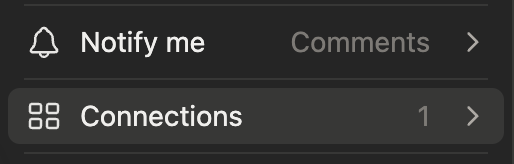
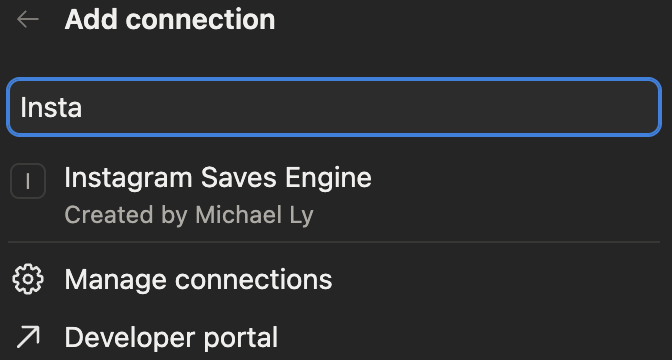
- Choose Connections, search your integration by name, and confirm.
Do this for both databases. If you skip this, the script gets a permission error.
Step 5: Grab your Instagram cookies
The script uses Instagram’s web API, so it needs your browser cookies.
- Log in to instagram.com in your browser.
- Open DevTools (Cmd + Option + I), go to Application → Cookies → the instagram.com entry.
- Copy the value of each of these:
sessionid,csrftoken,mid,ig_did.
Note: a sessionid by itself is not enough. Instagram rejects it without csrftoken.
Step 6: Add your secrets to the .env file
Open the project’s .env file and paste in your Notion token and the four Instagram cookie values. The database IDs are already filled in for you.
Step 7: Keep the project OUT of Desktop, Documents, and Downloads
This is important. macOS privacy protection blocks scheduled background jobs from running inside Desktop, Documents, or Downloads. Put the project in your home folder instead (for example, your home directory root). A scheduled sync will silently fail if the folder lives in a protected location.
Step 8: Run the installer
In Terminal, run the install script. It creates a Python virtual environment, installs the dependencies, and schedules the sync to run automatically twice a day (8 AM and 8 PM).
Step 9: Test a manual run
Run the sync once by hand to confirm everything works. You should see it accept your cookies, list your collections, and finish with zero errors. New saves appear in your Instagram Saves database in Notion.
Step 10: Refresh your sessionid when syncing stops
The sessionid cookie expires every so often, usually after a few weeks. When the sync stops adding new rows, grab a fresh sessionid value from your browser and paste it into the .env file. The other cookies stay valid and rarely need changing. Don’t log out of Instagram in that browser, since logging out kills the session.
Step 11: Turn saves into content ideas on demand
Whenever you want fresh content ideas, run the skill in Claude Code with /instagram-saves-to-ideas. It reads your unprocessed saves, generates hooks, an outline, and platform breakdowns, shows them to you for review, and saves the approved ones to your Content Ideas database.